
Edit Beacon Properties
The Loyalty platform allows you to edit the properties of a Beacon from the Beacons screen.
Note: You can't assign a Beacon to a Zone from the Beacons screen. The assignment of a Beacon to a Zone must be done from the Place Details screen (see Create a Zone for more information on this process).
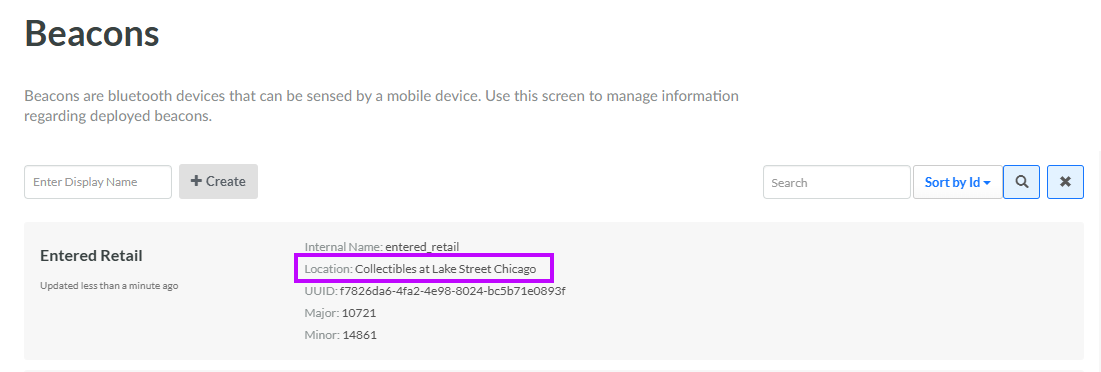
If a Beacon has been assigned to a Zone, the Zone and Place names are displayed on the Beacons screen within the Location field using the format <Zone name> at <Place name>. For example:
To view and edit the properties of a Beacon:
-
Select Admin from the top navigation bar, then select Locations > Beacons from the side navigation menu. The Beacons screen is displayed.
-
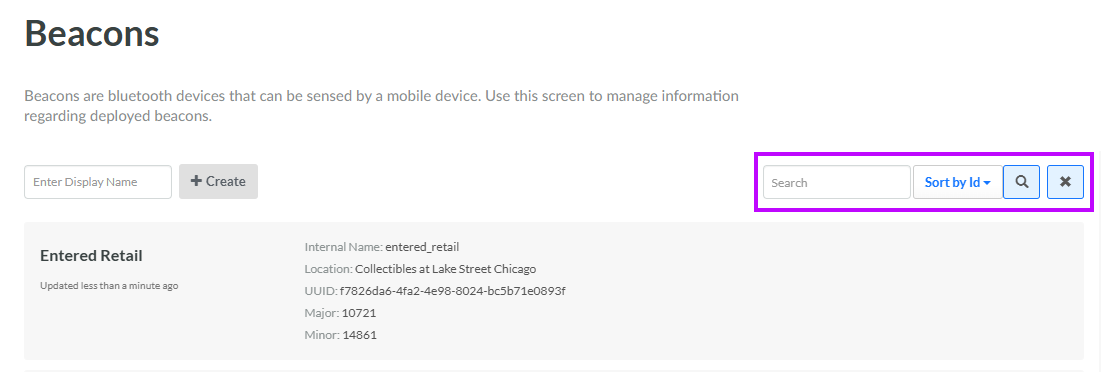
Optionally, in the Search field, enter the desired text string.
-
Click the Search icon. The screen is refreshed to show only the Beacons that meet your search criteria. If you entered multiple search criteria, the Beacon must meet ALL criteria.
-
To sort the search results, select the desired sort order from the Sort By drop-down menu. The default sort order is by: Beacon ID.
-
Click the desired Beacon. The Edit Beacon pop-up window is displayed.
-
Optionally, make the desired changes to the Beacon properties. For information on the available properties, see Create a Beacon.
-
Click Save.
